
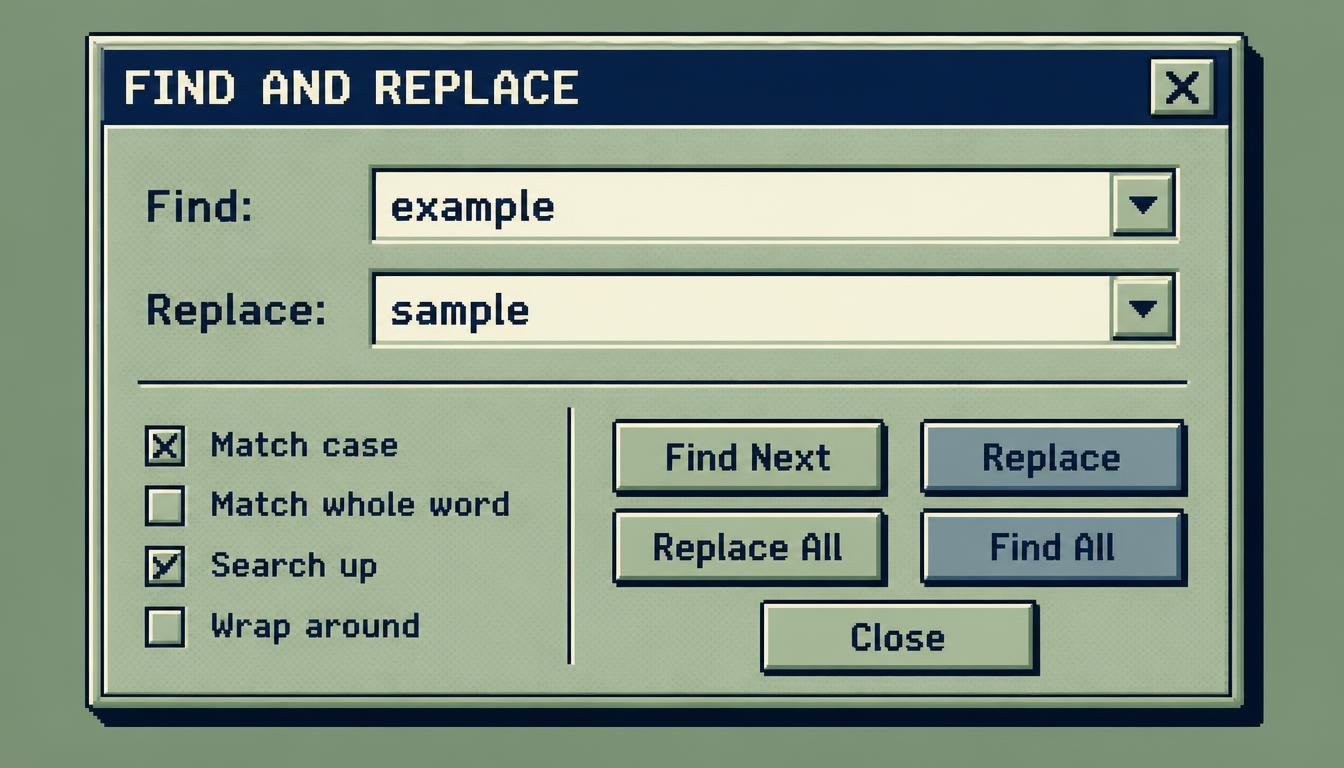
# Find & Replace Tool: Edit Large Amounts of Text in Seconds
Editing text can be simple when you're working with a few sentences.
But what happens when you need to change the same word, phrase, name, or piece of information dozens or even hundreds of times?
Doing it manually can be slow, repetitive, and surprisingly easy to get wrong.
That's where a Find & Replace Tool becomes incredibly useful.
A Find & Replace Tool allows you to search for specific text and replace it with different text. Instead of reading through an entire document looking for every occurrence, you can let the tool find the matching text and make the replacement for you.
It's a small productivity feature, but anyone who regularly works with documents, website content, keywords, lists, or other text will understand how valuable it can be.
## What Is a Find & Replace Tool?
A Find & Replace Tool is a text-editing utility that searches for a particular word or phrase and replaces matching occurrences with another word or phrase.
For example, imagine you have written:
"John is a professional writer. John creates articles for websites. John also writes product descriptions."
Later, you decide to change the name "John" to "David."
Instead of manually editing every sentence, you can use Find & Replace:
Find:
John
Replace with:
David
The result becomes:
"David is a professional writer. David creates articles for websites. David also writes product descriptions."
The basic idea is simple, but it can save a great deal of time when working with longer text.
## Why Is Find & Replace Useful?
Imagine editing a 10,000-word document.
You discover that a company name has changed.
The old company name appears 80 times throughout the document.
Searching for every occurrence and changing each one manually could take a long time.
There's also a risk of missing one.
A Find & Replace Tool can make the task much faster.
You provide the old text and the new text, and the tool handles the repetitive search-and-replace process.
This can help reduce manual work and make large-scale text editing more efficient.
## Find & Replace for Bloggers
Bloggers often update old content.
A website may have hundreds of articles, and information can change over time.
For example, a blog might mention:
"2025"
in multiple places.
When updating the article for a new year, you may need to replace the old year with:
"2026"
A Find & Replace Tool can make this process much faster.
It can also be useful when changing:
- Product names
- Company names
- Service names
- URLs
- Keywords
- Brand terminology
- Outdated information
However, always review the results before publishing.
A replacement that looks correct in one sentence may not make sense in another.
## Find & Replace for Freelance Writers
Freelance writers often work on documents provided by clients.
A client may request a terminology change after the first draft.
For example:
Replace "online course" with "digital course."
If the phrase appears throughout a long article, manually changing each occurrence is unnecessary work.
A Find & Replace Tool can handle the repetitive part.
The writer can then spend more time improving the content itself.
## Find & Replace for Students
Students can also benefit from this tool.
Imagine writing a long assignment and realizing that you've consistently used the wrong spelling of a term.
If the incorrect version appears many times, a replacement tool can quickly fix it.
For example:
Find:
enviroment
Replace:
environment
Instead of searching manually, you can make the correction across the text.
This is particularly useful during the final editing stage.
Students should still proofread the document after making replacements.
## Find & Replace for Researchers
Researchers often work with large documents, notes, transcripts, and datasets.
A research project may involve repeated names, terms, labels, or codes.
If one of those terms changes during the project, updating it manually can become tedious.
Find & Replace provides a quick way to make consistent changes throughout plain text.
For sensitive or important research data, however, always keep a backup of the original material before performing bulk replacements.
## Find & Replace for SEO Professionals
SEO professionals regularly update website content.
A business may change its target keyword, product name, service description, or internal URL structure.
For example, an older article might repeatedly use:
"free writing software"
while the preferred terminology becomes:
"free writing tool"
A Find & Replace Tool can quickly identify and update matching text.
It can also be useful for cleaning keyword lists or updating repeated phrases.
However, SEO professionals should avoid replacing keywords blindly.
A keyword should always fit naturally into the surrounding sentence.
Forced replacements can make content sound awkward and reduce readability.
## Find & Replace for Website Owners
Website owners sometimes need to make site-wide changes.
For example, a business may change its brand name.
If the old name appears across many pages, updating everything manually can be difficult.
A Find & Replace Tool can help with text that has already been collected into a document or text field.
For actual website-wide database changes, CMS-specific tools, database queries, or developer workflows may be more appropriate.
The important point is to understand where the text lives before making large-scale replacements.
## Find & Replace in Content Migration
Website migrations can involve large amounts of text.
A site may move from one domain to another or change URL structures.
For example:
oldwebsite.com
may need to become:
newwebsite.com
If a document contains many old URLs, Find & Replace can update them quickly.
However, website migration requires more than changing visible URLs.
Redirects, internal links, canonical URLs, sitemaps, structured data, and other technical elements may also need attention.
A text replacement tool can assist with the content side of the process, but it shouldn't be treated as a complete migration solution.
## Find & Replace for Formatting
The tool isn't only useful for changing words.
You can also replace certain characters or formatting patterns.
For example, you may have a list separated by semicolons:
Apple; Banana; Orange; Mango
You might want to convert the separators into commas:
Apple, Banana, Orange, Mango
Find:
;
Replace:
,
This is a simple example of how Find & Replace can help transform text.
## Find & Replace for Cleaning Text
Text copied from different sources can contain unwanted characters.
For example:
"Hello | World | Welcome"
You might want to remove the vertical bars.
Find:
|
Replace:
The result becomes:
"Hello World Welcome"
You could then perform another cleanup step to remove the extra spaces.
This demonstrates how Find & Replace can be combined with other text-cleaning tools.
## Find & Replace for Lists
Large lists can contain repeated formatting patterns.
For example:
Name: John
Name: David
Name: Sarah
You may want to remove "Name: " from every line.
Find:
Name:
Replace:
The result becomes:
John
David
Sarah
This can save considerable time when cleaning simple text lists.
## Find & Replace for Developers
Developers use search-and-replace functions constantly.
They may need to update:
- Variable names
- File paths
- URLs
- Configuration values
- Text strings
- API endpoints
- Documentation
- Comments
Modern code editors generally include powerful Find & Replace features.
An online Find & Replace Tool can still be useful for plain text, copied data, or quick transformations.
Developers should be especially careful when replacing text inside source code.
Changing a common word or symbol without understanding its context can accidentally modify code that shouldn't be changed.
## Case-Sensitive Find & Replace
Some Find & Replace tools provide a case-sensitive option.
This means the tool treats uppercase and lowercase letters as different.
For example:
Apple
and:
apple
may be considered different matches.
Without case sensitivity, both might be replaced.
With case sensitivity enabled, you can target only the exact capitalization you entered.
This is useful when working with names, technical terms, or structured text.
## Whole Word Matching
Some advanced search tools offer a "whole word" option.
This can prevent a short word from matching part of a longer word.
For example, suppose you want to replace:
"cat"
If the search isn't limited to whole words, it might potentially match part of:
"catalog"
A whole-word option can restrict the search to the standalone word "cat."
This is especially helpful when working with large documents where accidental matches could cause problems.
Not every simple online tool supports this feature, so check the available options.
## Why You Should Preview Changes
Bulk replacement is powerful.
That also means mistakes can affect many parts of your document at once.
Suppose you replace a common word that appears 500 times.
If you entered the wrong replacement text, you've potentially changed the entire document incorrectly.
That's why a preview or review step is valuable.
If the tool provides a replacement count, check it.
If it reports 500 matches when you expected only 20, stop and investigate.
The goal is to automate repetitive work without losing control over the final content.
## Always Keep a Backup
Before performing a large replacement, keep a copy of the original text.
This is especially important for:
- Business documents
- Research files
- Website content
- Large articles
- Technical documentation
- Important records
If something goes wrong, you can return to the original version.
For small pieces of text, this may seem unnecessary.
For large projects, it's a good habit.
## How to Use a Find & Replace Tool
The process is usually straightforward.
### Step 1: Enter Your Text
Paste the content you want to edit into the tool.
### Step 2: Enter the Text to Find
Type the word, phrase, character, or text pattern you want to locate.
### Step 3: Enter the Replacement
Type the new text you want to use.
### Step 4: Choose Optional Settings
If available, you may be able to select options such as:
- Case-sensitive search
- Whole-word matching
- Replace all
- Replace one at a time
### Step 5: Run the Replacement
The tool searches for matching text and replaces it according to your settings.
### Step 6: Review the Result
Read through the changed text.
### Step 7: Copy the Final Version
Once you're satisfied, copy the updated text and continue working.
## Common Find & Replace Mistakes
Although the tool is simple, there are several mistakes users should avoid.
### Replacing Too Broad a Term
A short word can appear inside many other words.
Always consider whether you need whole-word matching.
### Ignoring Capitalization
"Apple" and "apple" may need to be treated differently.
### Replacing Without Checking
Never assume every occurrence should change.
### Forgetting Special Characters
Spaces, punctuation, and symbols can affect the search.
### Not Keeping a Backup
Bulk replacements can be difficult to undo outside applications that provide an undo function.
## Find & Replace vs. Manual Editing
Manual editing works perfectly well for small documents.
If you only need to change one or two occurrences, searching and editing them yourself may be faster.
The advantage of Find & Replace becomes clear when the same change needs to happen repeatedly.
For example:
1 occurrence — manual editing is easy.
10 occurrences — either method may work.
100 occurrences — Find & Replace becomes much more attractive.
1,000 occurrences — automation can save substantial time.
The larger the document, the more valuable repetitive automation becomes.
## Combining Find & Replace With Other Text Tools
Find & Replace becomes even more useful when combined with other text utilities.
For example:
1. Remove extra whitespace.
2. Convert text to a consistent case.
3. Find and replace outdated terms.
4. Remove duplicate lines.
5. Sort the final list.
Each tool handles a different part of the cleanup process.
Together, they can turn messy text into a much cleaner final result.
## Benefits of Using a Find & Replace Tool
### Saves Time
Repeated changes can be completed quickly.
### Reduces Repetitive Work
You don't have to manually edit every occurrence.
### Improves Consistency
The same replacement can be applied throughout the text.
### Useful for Large Documents
Long articles and documents become easier to update.
### Helps With Text Cleaning
Unwanted characters and repeated formatting can be changed or removed.
### Useful for SEO
Keywords, URLs, and terminology can be updated efficiently.
### Helpful for Developers
Plain-text data and documentation can be modified quickly.
## Who Should Use a Find & Replace Tool?
A Find & Replace Tool can be useful for:
- Students
- Bloggers
- Freelance writers
- Editors
- SEO professionals
- Developers
- Researchers
- Marketers
- Content creators
- Website owners
- Business professionals
Anyone who regularly edits text can benefit from fast search-and-replace functionality.
## Frequently Asked Questions
### What is a Find & Replace Tool?
It is a text-editing tool that searches for specified text and replaces it with another word, phrase, or character.
### Can I replace a word throughout a long document?
Yes. If the tool supports replacing all matching occurrences, you can update repeated text quickly.
### Can I replace symbols?
Yes. Find & Replace can often be used to replace characters such as commas, semicolons, dashes, or other symbols.
### Can I remove text using Find & Replace?
Yes. You can usually leave the replacement field empty to remove matching text, depending on the tool.
### What is case-sensitive search?
Case-sensitive search distinguishes between uppercase and lowercase letters.
### Should I keep a backup before replacing text?
Yes. Keeping the original is a good precaution when making large-scale changes.
### Can Find & Replace be used for SEO?
Yes. It can help update keywords, terminology, URLs, and other repeated text, but replacements should always be reviewed for context and readability.
## Final Thoughts
Editing doesn't always have to mean reading every line and making every change manually.
Sometimes you know exactly what needs to change.
A company name needs updating.
An old year needs replacing.
A spelling mistake appears dozens of times.
A URL has changed.
A repeated phrase needs to be removed.
In situations like these, a Find & Replace Tool can turn a tedious editing task into a quick process.
The real benefit isn't simply speed.
It's consistency.
When the same change needs to happen many times, automation reduces the chance that you'll accidentally miss an occurrence.
At the same time, automation should always be combined with human review.
Text has context.
A word that should be replaced in one sentence may be part of a different phrase somewhere else.
So use Find & Replace to handle the repetitive work, but take a moment to check the final result.
Keep an original copy.
Review the number of replacements.
Look for unexpected changes.
Then publish or share the updated content with confidence.
Sometimes productivity isn't about working harder.
It's about finding the small tools that eliminate unnecessary work.